

'%3E%3Cpath d='M0,0 v30 h60 v-30 z' fill='%23012169'/%3E%3Cpath d='M0,0 L60,30 M60,0 L0,30' stroke='%23fff' stroke-width='6'/%3E%3Cpath d='M0,0 L60,30 M60,0 L0,30' clip-path='url(%23t)' stroke='%23C8102E' stroke-width='4'/%3E%3Cpath d='M30,0 v30 M0,15 h60' stroke='%23fff' stroke-width='10'/%3E%3Cpath d='M30,0 v30 M0,15 h60' stroke='%23C8102E' stroke-width='6'/%3E%3C/g%3E%3C/svg%3E)

Connection issues with the Hotbird 13E satellite can be quite common. If you find that the Hotbird 13E satellite is not working, it may be due to various factors. In this article, we will discuss the main problems users may encounter and provide step-by-step instructions for setting up CCcam.
Common Issues with Hotbird 13E
Users trying to connect to the Hotbird 13E satellite may face several common problems. These issues can be related to hardware, receiver settings, or signal.
Checking Equipment
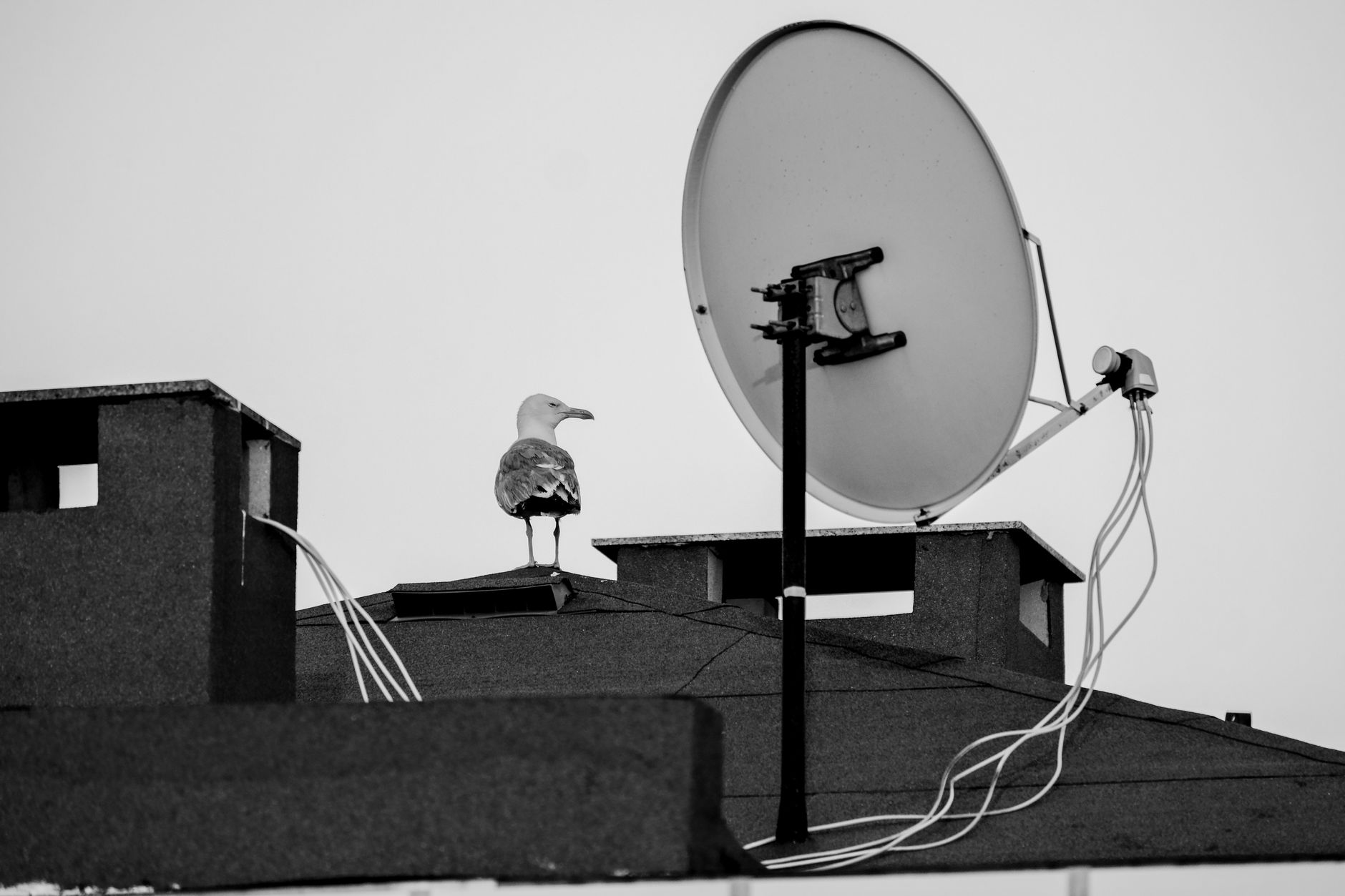
The first step in diagnosing connection issues with Hotbird 13E is to check the equipment. Ensure that the satellite dish is properly installed and aimed at the satellite. Use the signal level on your receiver to check if you are receiving a signal.
Receiver Settings
The next step is to check the settings of your satellite receiver. Make sure you have correctly entered the parameters for Hotbird 13E, such as frequency, polarization, and symbol rate. Incorrect settings can lead to a lack of signal.
Signal Issues
Sometimes signal issues can arise due to weather conditions or obstacles such as trees or buildings. Check for any obstructions in front of the dish, and if possible, try to realign the dish to improve signal quality.
Setting up CCcam for Hotbird 13E
If you have access to a working CCcam server, you can set it up to work with Hotbird 13E. Here are step-by-step instructions for installing and configuring CCcam.
Steps to Install CCcam
First, you need to install CCcam on your satellite receiver. This is usually done through your receiver's interface. Find the section for installing plugins or add-ons and download CCcam. Ensure that the CCcam version is compatible with your receiver.
Configuring the CCcam.cfg File
After installing CCcam, you need to configure the configuration file. The file is usually located at /etc/CCcam.cfg. Open it with a text editor and add your server information. You will need the following data:
- Server URL
- Port (usually 444 for CCcam)
- Username and password for server access
Note that the case of letters in the username is important. After making changes, save the file and restart the receiver.
Checking Connection
After setting up CCcam, check the connection. To do this, find the section dedicated to CCcam in your receiver's menu. Ensure that the connection status shows as "Connected." If you see the status "Disconnected," check the entered connection data and make sure the internet connection is working correctly.
Troubleshooting CCcam
Even after correctly setting up CCcam, errors may occur. Let's look at some common errors and how to resolve them.
Common Errors and Their Solutions
One of the most common errors is the lack of access to the server. Make sure you have the correct username and password, and that the server is accessible. If you see the error "no card," it may mean that your server does not provide access to the channels you are trying to watch.
Logs and Their Analysis
CCcam logs can provide valuable information about what is happening. Open the log file, usually located at /var/log/CCcam.log, and look for error messages. They may indicate connection issues, incorrect settings, or other problems that require attention.
Network Settings
Network issues can also be a cause of CCcam malfunctions. Ensure that your receiver is connected to the internet and that the network settings are correct. Check for any blocks on the router or other network devices that may interfere with the connection to the server.
Choosing a Provider for CCcam
Choosing the right provider for CCcam can significantly improve your experience with satellite television. Here are some tips to help you make the right choice.
Selection Criteria
When choosing a provider, pay attention to its reputation, user reviews, and service quality. A reliable provider should offer a stable connection and high image quality.
What to Look for in a Provider
It is important that the provider offers support for various protocols, including CCcam and newcamd. Also, check if they have a trial period so you can evaluate the service quality before purchasing a subscription.
Avoid Scammers
Unfortunately, there are many scammers in the market offering non-existent services. Be cautious and avoid providers with suspiciously low prices or a lack of information about their activities.
Additional tips for setting up CCcam
Setting up CCcam can be a challenging task, especially for users encountering this technology for the first time. Here are some additional tips that may help you in this process.
Using the correct versions of CCcam
Before installation, make sure you are using the latest stable version of CCcam, as newer versions may contain bug fixes and performance improvements. Current information about versions and their compatibility with your receiver can often be found on forums and community websites dedicated to satellite television.
Testing on different devices
If possible, try installing CCcam on another receiver or in an emulator. This will help determine whether the problem is related to a specific device or settings. Sometimes hardware incompatibility can be the cause of issues.
Updating the receiver's firmware
Don't forget that the firmware of your receiver can also affect the operation of CCcam. Make sure your receiver is updated to the latest firmware version, as outdated versions may be incompatible with modern card sharing protocols.
Common compatibility issues
Compatibility issues can arise not only from settings but also from hardware features. Here are some aspects to pay attention to.
Protocol support
Not all receivers support all card sharing protocols. Make sure your receiver can work with CCcam and newcamd. Sometimes even updating the firmware does not resolve the issue if the hardware does not support the necessary features.
Recommendations for antennas
When using satellite television, it is very important to choose the right antenna. For Hotbird 13E, antennas with a diameter of at least 80 cm are recommended, especially if you are on the edge of the coverage area. A larger antenna can significantly improve signal quality, especially in poor weather conditions.
Problems with multi-feed
If you are using a multi-feed to receive signals from multiple satellites, make sure the antennas are properly aligned and not interfering with each other. Incorrect installation of the multi-feed can lead to signal quality issues and lack of access to certain satellites.
Using OSCam with CCcam
If you encounter problems when using CCcam, consider switching to OSCam. This is a more versatile emulator that is often used in conjunction with CCcam to improve performance and expand functionality.
Advantages of using OSCam
OSCам allows for more flexible configuration of connection parameters and supports many different protocols and formats. This can be useful if you have different card sharing sources. In some cases, using OSCam can resolve issues that could not be fixed with CCcam.
Setting up OSCam
Setting up OSCam can be more complex than CCcam, but with the right approach, it can lead to better results. Make sure you have carefully studied the documentation and configuration examples available on forums and specialized resources.
Following these recommendations and considering all the nuances described above will help you avoid common problems and achieve stable operation of your satellite television. Setting up CCcam and working with Hotbird 13E can be challenging, but with the right approach and understanding of the process, you will be able to enjoy high image quality and a stable connection.
Why is the Hotbird 13E satellite not working?
Check the equipment, settings, and signal. Make sure the antenna is properly aimed and adjusted.
How to set up CCcam to work with Hotbird 13E?
Follow the step-by-step instructions for installation and setup, including the correct server parameters.
How to fix CCcam errors?
Analyze the logs and check the network settings to find and resolve issues.
What to do if the signal disappears?
Check the antenna and receiver settings. Make sure there are no obstacles to the signal.
How to choose a provider for CCcam?
Look at the reputation, support, and terms of use. Study reviews from other users.
Who we are and how we verify
Utgard (new.utgard.tv) — paid card sharing for satellite TV using newcamd and CCcam protocols.
Before publishing information about Utgard — prices, trial access, devices, payment — it is verified against the service's data. Links to third-party services and devices lead to their official websites; their availability is checked on the day of publication.
Date of verification:
Sources
- Eutelsat (Hotbird) — official website
Practical checklist for smooth viewing
Even the best CCCam or OSCam line needs two or three simple preparations. Update your receiver firmware, reset the ECM cache once a week and keep 15–20% free space on the USB stick or internal flash so that the reader can store keys without delays.
When tuning a dish, aim for MER/BER reserve: a two‑degree offset or a loose F‑connector often causes the “freezing” that users blame on cardsharing. Keep a short patch cord to test alternative routers, and save two profiles in OSCam — one for TCP, one for UDP — so you can switch instantly if your ISP starts filtering a protocol.
Utgard.tv monitors each hub 24/7, but you can speed up diagnostics by keeping a short log of your receiver actions. Note the time when you changed the channel, which CAID was active and whether you used Wi‑Fi or Ethernet. This tiny “journal” helps engineers reproduce your environment in the lab and return with a solution in minutes instead of hours.
- Keep two line slots enabled: if the first server hits a maintenance window, the second one instantly takes over without re-entering credentials.
- Run a monthly speed and latency test. Stable 1–2 Mbps with ping <80 ms is enough for SD/HD, but if jitter exceeds 20 ms, switch the router to wired mode.
- Save the Utgard.tv status page and Telegram bot @utgard_sharing_bot to bookmarks — they publish maintenance notices before SEMrush or uptime monitors raise alerts.