

'%3E%3Cpath d='M0,0 v30 h60 v-30 z' fill='%23012169'/%3E%3Cpath d='M0,0 L60,30 M60,0 L0,30' stroke='%23fff' stroke-width='6'/%3E%3Cpath d='M0,0 L60,30 M60,0 L0,30' clip-path='url(%23t)' stroke='%23C8102E' stroke-width='4'/%3E%3Cpath d='M30,0 v30 M0,15 h60' stroke='%23fff' stroke-width='10'/%3E%3Cpath d='M30,0 v30 M0,15 h60' stroke='%23C8102E' stroke-width='6'/%3E%3C/g%3E%3C/svg%3E)

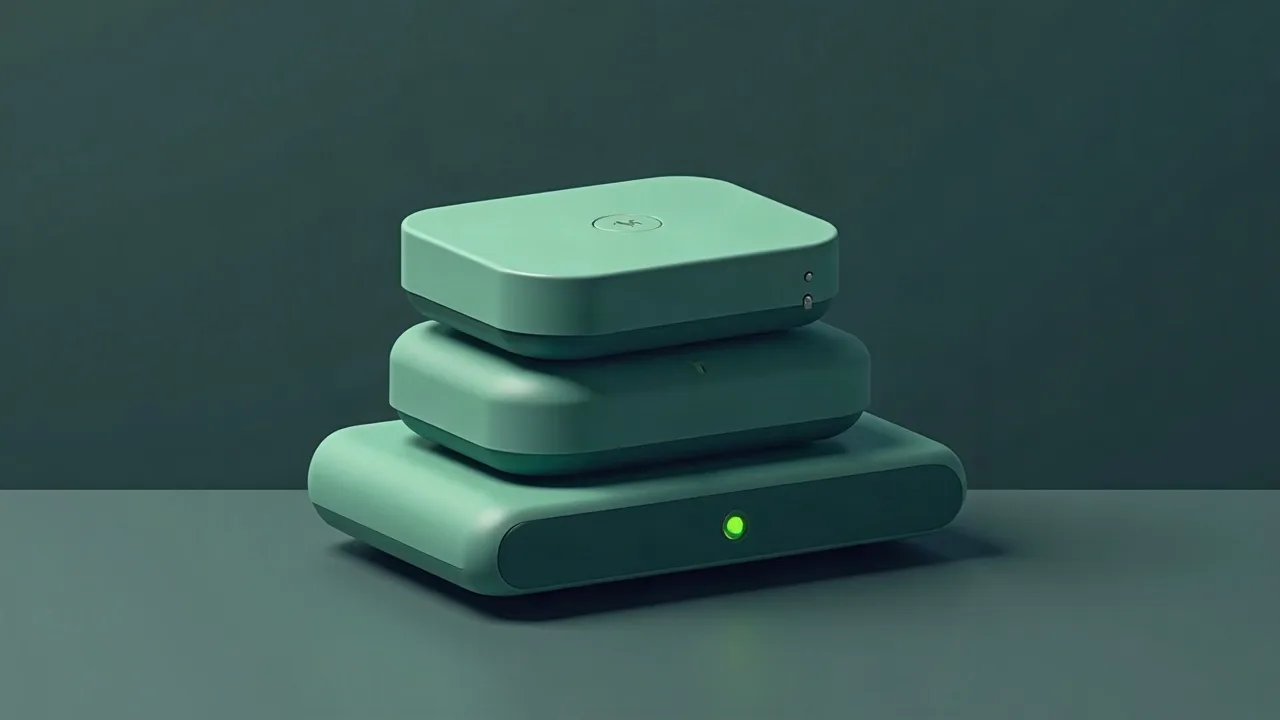
The Enigma2 satellite receiver is a powerful solution for receiving satellite television, allowing users to configure and manage their content. In this guide, I will explain how to properly set up the Enigma2 satellite receiver for use with CCcam and OScam in 2026, so you can enjoy quality television without unnecessary hassle.
Introduction to Enigma2 and its capabilities
What is Enigma2?
Enigma2 is an operating system for satellite receivers based on Linux. It provides users with a wide range of features and capabilities for configuring and managing satellite television. Enigma2-based receivers support numerous plugins, allowing for expanded functionality.
Advantages of using Enigma2
One of the main advantages of the Enigma2 satellite receiver is its open architecture. This allows users to customize the system to their needs, install various plugins, and modify the interface. Additionally, Enigma2 supports working with various protocols, such as CCcam and OScam, making it a versatile solution for accessing satellite television.
Key features
The Enigma2 satellite receiver offers many features, including:
- Support for various video and audio formats.
- Recording broadcasts to external storage.
- Access to internet resources and streaming video.
- Custom user interfaces and themes.
- Support for various network protocols.
Preparing to configure CCcam and OScam
What do you need for setup?
First, you will need the Enigma2 satellite receiver itself, as well as internet access. Don't forget to install the necessary plugins for working with CCcam and OScam. This can usually be done through the receiver's interface. You will also need a configuration file for CCcam and OScam, which you will receive from your provider.
System requirements
Make sure your receiver meets the minimum system requirements. You will need:
- A processor with a clock speed of at least 300 MHz.
- At least 256 MB of RAM.
- A USB port for connecting external storage.
Choosing a provider
When choosing a provider for CCcam or OScam, pay attention to reliability, speed, and quality of support. Read user reviews and choose those with a good reputation. It is also important to check which channels and services the provider offers.
Steps to configure CCcam on Enigma2
Installing CCcam
Installing CCcam on the Enigma2 satellite receiver is usually done through the menu. First, download the required CCcam package from the official website or through a plugin. After downloading, go to the "Plugins" menu and select installation.
Configuring CCcam
After installing CCcam, you need to configure it. Open the file /etc/CCcam.cfg with a text editor. Here is an example of a basic configuration:
C: ваш_провайдер 12000 ваш_логин ваш_пароль
F: 0 0 0
Replace "your_provider", "your_login", and "your_password" with the actual data from your provider. Don't forget to save the file after editing.
Testing the connection
After configuring, restart the receiver. To check the operation of CCcam, go to the "System Settings" menu and select "System Information." There you can see the connection status and the number of active connections.
Configuring OScam for Enigma2
Installing OScam
Installing OScam is similar to installing CCcam. Find the OScam plugin in your receiver's menu and install it. Make sure you select the correct version for your hardware.
Configuring OScam
The OScam configuration is located in the file /etc/oscam/oscam.server. Example configuration:
[reader]
label = ваш_провайдер
enable = 1
protocol = your_protocol
device = ваш_провайдер:12000
user = ваш_логин
password = ваш_пароль
After editing the file, save the changes and restart OScam.
Functionality check
To check the functionality of OScam, open the OScam web interface, which is usually available at http://your_IP:8888. Enter the username and password to access statistics and connection information.
How to choose the right provider for CCcam?
Look for reliability, speed, and support. Read reviews, analyze offers, and choose the most suitable option.
How to troubleshoot CCcam connection issues?
Check the configuration, ports, and network settings. Make sure all data is entered correctly and that you have a stable internet connection.
What to do if OScam does not start?
Check the error logs and configuration settings. Often the problem lies in incorrect data or configuration.
How to update CCcam or OScam on Enigma2?
Follow the update instructions in the documentation for your receiver. This is usually done through the plugins menu.
Can multiple providers be used simultaneously?
Yes, but the configuration needs to be set up correctly. Make sure all data is entered accurately and does not conflict with each other.
Hardware compatibility issues
One common issue when setting up an Enigma2 satellite receiver is hardware compatibility. Not all receiver models support the same versions of CCcam and OScam, so it's worth checking if they are compatible before purchasing or installing.
For example, some older receiver models may not support the latest versions of CCcam or OScam due to hardware limitations. If you encounter problems, it is recommended to refer to your receiver's documentation or forums dedicated to Enigma2. The user community often shares helpful tips and solutions.
Incorrect network settings
Another frequent cause of failures when using a satellite receiver is incorrect network configuration. Make sure your receiver is connected to the internet. You can check this through the "Network Settings" menu. If you are using Wi-Fi, ensure that the signal is strong enough and that the password is entered correctly.
It is also worth checking the router settings. Sometimes routers can block certain ports used by CCcam and OScam. Make sure the ports specified in the configuration are open. For example, CCcam uses port 12000 by default, and OScam uses 8888. If you are using NAT or a proxy server, additional routing configuration may be required.
Additional plugins for Enigma2
There are many additional plugins for Enigma2 that can significantly enhance the functionality of your receiver. For example, plugins for recording TV shows, managing streaming video, as well as advanced interfaces for working with EPG (Electronic Program Guide).
Popular plugins like "OpenWebif" allow you to manage your receiver through a web interface, making setup and management much easier. You can start recordings, switch between channels, and change settings directly from your computer or mobile device.
Receiver firmware update
Regularly updating the firmware of your Enigma2 satellite receiver can prevent many problems and provide access to the latest improvements and fixes. Check the manufacturer's website for the latest firmware versions and follow the update instructions.
Firmware updates are usually performed through the "Settings" menu of your receiver. You will need to select the update option and follow the on-screen prompts. Sometimes the firmware can be downloaded directly from a USB drive, which helps avoid internet connection issues.
Community and user support
Don't forget that Enigma2 has an active user community. There are many forums and social media groups where you can ask questions and get help. Subscribe to resources dedicated to Enigma2, and you will be able to find solutions to many problems faced by other users.
Participating in such communities will not only help you find answers to your questions but also allow you to share experiences with other users. You can learn about new plugins, useful settings, and even the best providers for CCcam and OScam.
Conclusion on setting up the Enigma2 satellite receiver
Setting up the Enigma2 satellite receiver may seem like a daunting task, but with the right knowledge and approach, it is quite achievable. By following the provided instructions, you will be able to set up CCcam and OScam, as well as resolve potential compatibility and network configuration issues. Don't be afraid to experiment and seek help from the community — it will help you make the most of your receiver.
Practical checklist for smooth viewing
Even the best CCCam or OSCam line needs two or three simple preparations. Update your receiver firmware, reset the ECM cache once a week and keep 15–20% free space on the USB stick or internal flash so that the reader can store keys without delays.
When tuning a dish, aim for MER/BER reserve: a two‑degree offset or a loose F‑connector often causes the “freezing” that users blame on cardsharing. Keep a short patch cord to test alternative routers, and save two profiles in OSCam — one for TCP, one for UDP — so you can switch instantly if your ISP starts filtering a protocol.
Utgard.tv monitors each hub 24/7, but you can speed up diagnostics by keeping a short log of your receiver actions. Note the time when you changed the channel, which CAID was active and whether you used Wi‑Fi or Ethernet. This tiny “journal” helps engineers reproduce your environment in the lab and return with a solution in minutes instead of hours.
- Keep two line slots enabled: if the first server hits a maintenance window, the second one instantly takes over without re-entering credentials.
- Run a monthly speed and latency test. Stable 1–2 Mbps with ping <80 ms is enough for SD/HD, but if jitter exceeds 20 ms, switch the router to wired mode.
- Save the Utgard.tv status page and Telegram bot @utgard_sharing_bot to bookmarks — they publish maintenance notices before SEMrush or uptime monitors raise alerts.